

Intelligence action items
An action item is a to-do Intelligence writes for you after reading your conversations. For example: "3 follow-ups committed but not logged as done". Each item says what it found, what it may cost you, and what to do.
Find it: Sidebar → Intelligence → Action items tab. The top three also show on the Briefing tab.
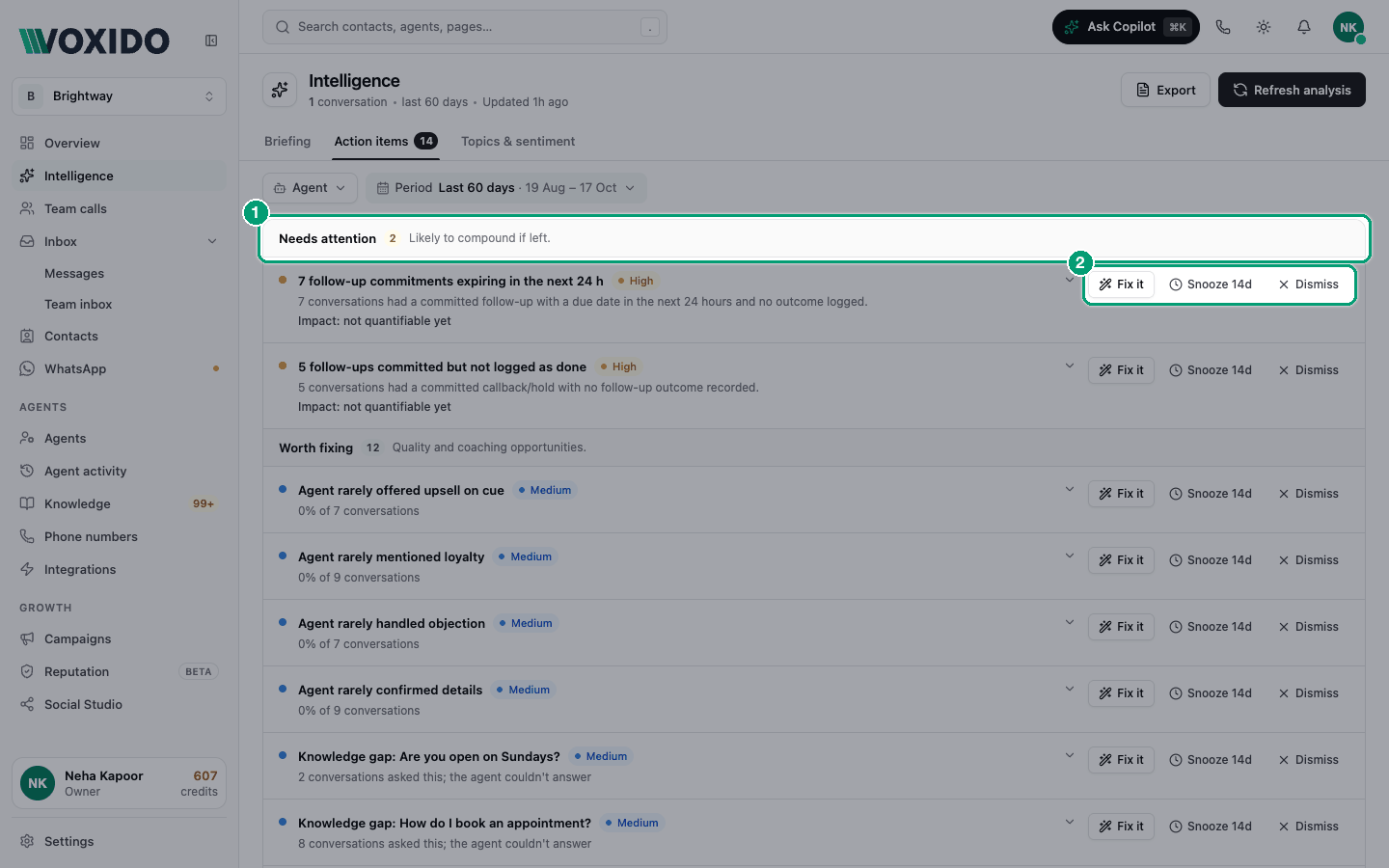
How items are grouped
| Group | Meaning |
|---|---|
| Do this now | "Revenue or trust on the line." |
| Needs attention | "Likely to compound if left." |
| Worth fixing | "Quality and coaching opportunities." |
| FYI | "Background patterns to watch." |
Each item shows its title, a Critical, High, Medium or Low label, what was found, and its impact (for example "₹12,000 Revenue at risk"). Click the title to read Recommended: and the suggested next step.
Voxido checks for new items once a day. Click Refresh analysis to check now. When a problem goes away, its item closes by itself.
The six kinds of items
| Item title looks like | What it means | Fix it does |
|---|---|---|
| "N follow-ups committed but not logged as done" | The agent promised to call or message people back, but nothing shows it happened. | Queues follow-up calls by the agent for review. |
| "N follow-up commitments expiring in the next 24 h" | Same, but the promised time is within a day. Urgent. | Queues follow-up calls by the agent for review. |
| "Knowledge gap: …" | People asked this at least twice and the agent couldn't answer. A draft answer is ready. | Approves the drafted FAQ answer, so the agent can use it. |
| "Agent rarely …" | An agent misses a quality point in more than half its calls, like confirming details. | Adds one instruction to that agent. |
| "… is winning rate comparisons" | People keep naming a competitor. The item says how many booked elsewhere. | Proposes a setting that lets the agent match that competitor's rate. Marked Medium risk. |
| "Negative sentiment up on '…'" | A topic turned more negative than in the period before. | No Fix it. Read the conversations on that topic. |
Fix, snooze or dismiss?
| If… | Choose | Why |
|---|---|---|
| The finding is right and the fix makes sense | Fix it | It applies the change for you, with a preview first. |
| It's right, but you can't act this week | Snooze 14d | It hides for 14 days, then comes back. |
| It's wrong, or you've already handled it elsewhere | Dismiss | It goes away and won't come back for the same finding. |
| There's no Fix it button | Click the title and follow Recommended: | Some items need a person to decide. |
Use Fix it
Example: Brightway's booking agent rarely confirms the appointment time.
- Click Fix it on the item. You'll see: a window with the item title, a risk label like Low risk, a one-line summary, and a preview of the change.
- Read the preview. For an instruction change, it shows the exact line that will be added.
- If you see Execution mode, pick one:
- Shadow (draft): "Changes are applied but not active. Promote to make them live after reviewing."
- Live: "Changes are applied and active straight away."
- Click Apply as draft or Apply now. You'll see: "Draft applied — ready to promote" or "Change applied successfully".
- For a draft, test the agent with Try it live. Then come back and click Promote to live, or Discard to undo it. You'll see: the item leaves the list, and the agent's instruction changes list shows the new version.
Draft first for live agents
If the agent talks to real customers right now, choose Shadow (draft). Test it, then promote. It costs you one extra click and protects your customers from a bad change.
Examples
- Clinic: "Knowledge gap: Do you accept insurance?" asked 6 times. Click Fix it to approve the drafted answer. Check the wording first.
- School: "4 follow-up commitments expiring in the next 24 h". Parents were promised a call about fee details. Click Fix it so the agent's calls are queued today.
- Real estate: "Agent rarely handled objection". Apply the instruction as a draft, test a price objection in Try it live, then promote.
Common problems
There's no Fix it button. Not every item has an automatic fix. Click the title to read the recommendation.
Fix it shows an error. The change couldn't be prepared. Close the window, click Refresh analysis, then try again.
A dismissed item came back. It's a new finding, like a new knowledge gap or a new 60-day pattern. Dismiss works per finding.