

Messages: read and reply to customer chats
Messages is where you read every conversation your agents have with customers, and step in when a person should reply.
Find it: Sidebar → Inbox → Messages
Messages is for chats with customers. Alerts and tasks for your staff are in the Team inbox.
The layout
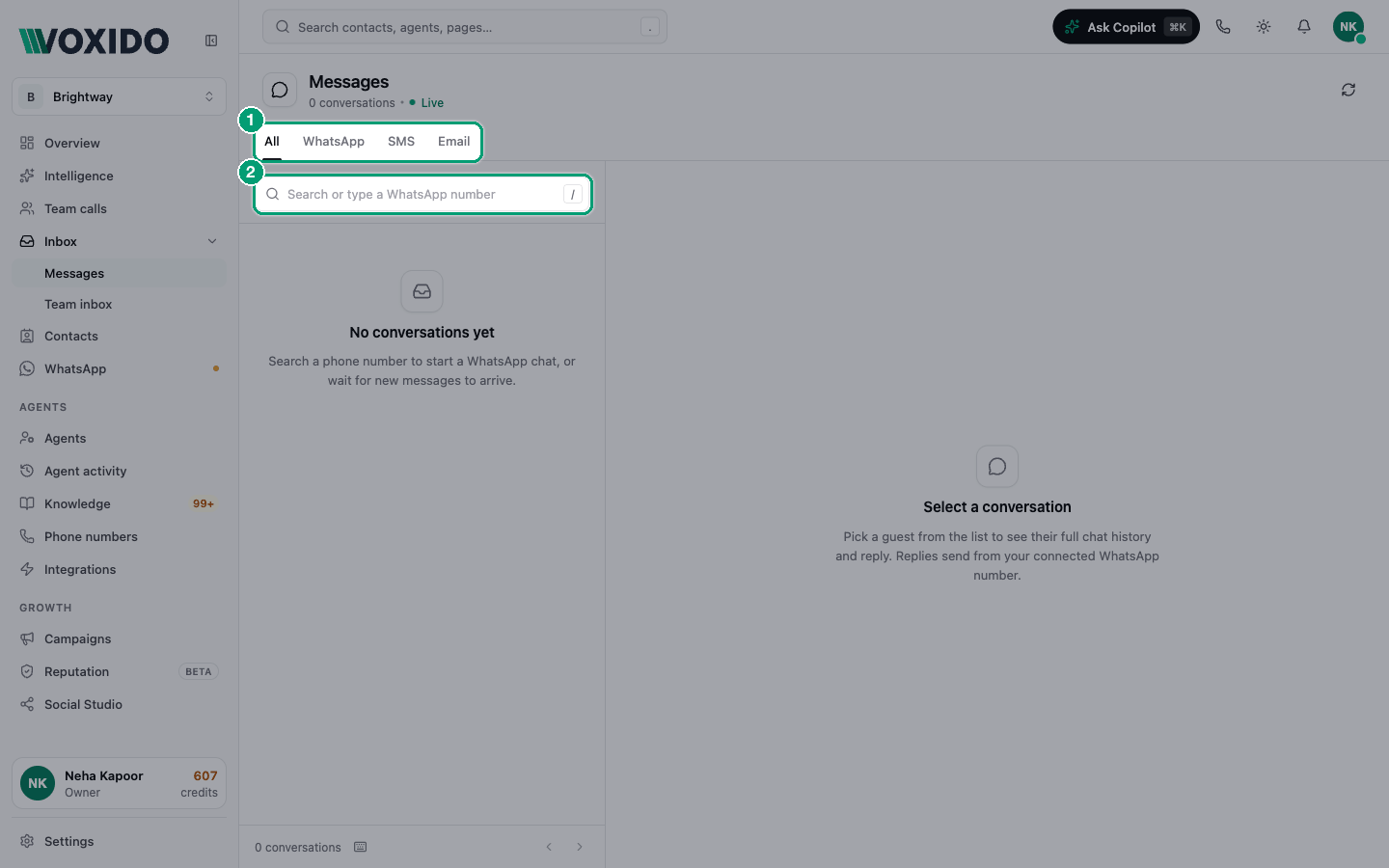
| Area | What's there |
|---|---|
| Top | Messages, the number of conversations and how many are unread. Tabs: All, WhatsApp, SMS, Email. A refresh button. |
| Left | Your conversations, newest first, with a search box. |
| Right | The open conversation and the reply box. |
Read the conversation list
Each row shows the customer's name (or number), when they last wrote, and the last message. "You:" means your side sent it last. A tag shows the contact's stage (for example "Lead"), and a small badge shows the channel.
A blue dot and bold name mean unread: the customer wrote last and nobody has replied yet.
Read a conversation
- Customer messages are on the left in grey.
- AI replies are on the right in a green box.
- Replies from your team are on the right in dark ink, with the person's name.
- Ticks show delivery: one tick = sent, two ticks = delivered, two blue ticks = read, a red circle = failed.
Click the customer's name at the top, or the panel icon (Contact details), to see their contact card without leaving the chat.
Find a conversation
- Click the search box (or press /).
- Type a name or a phone number. You'll see: matching conversations.
- To start a new WhatsApp chat, type a full number and press Enter. You'll see: "Start WhatsApp with +91…" — "New number — send an approved template". Click it.
Use the tabs to see only WhatsApp, SMS or Email. Press ↑ / ↓ (or K / J) to move between conversations.
Who is replying: the AI or you?
On WhatsApp chats, a pill at the top shows who is in charge:
| Pill | Meaning |
|---|---|
| AI active | The AI answers this customer. |
| You have control | The AI is paused. Your replies go to the customer. The note under the reply box says until when. |
Pick your path: when to take over
The problem: "The AI is chatting with a customer. Should I jump in?"
| If… | Do this | Why |
|---|---|---|
| The AI is doing fine | Let it run. Just read. | Saves your time. |
| You want to send one quick answer yourself | Type it and press Enter | Sending a reply takes over automatically. |
| You want to handle the whole chat (a complaint, a big order, a VIP) | Click Mute AI first, then reply | The AI stays quiet for 24 hours, even if you don't type yet. |
| You're done | Click Resume AI | The AI answers the customer's next message. |
| The AI is stuck or repeating itself | ⋯ → Reset AI session | Starts a fresh AI conversation. Nothing is deleted. |
Take over and reply
- Open the WhatsApp conversation.
- Type in the reply box (Reply on WhatsApp…) and press Enter. Use Shift + Enter for a new line. You'll see: "Message sent — AI paused — you have the conversation." The pill changes to You have control.
- To send a photo or file, click the paperclip (Attach file). Images (JPG, PNG) can be up to 5 MB, and documents (PDF, DOC, DOCX) up to 25 MB.
Or click Mute AI to pause without sending. You'll see: "AI muted for 24 hours", with the time it will resume.
Hand back to the AI
- Click Resume AI at the top of the chat. You'll see: "Hand this conversation back to the AI? The next message from this guest will be answered by the AI agent again."
- Click Resume AI. You'll see: "AI resumed". The pill goes back to AI active.
If you don't hand back, the AI resumes by itself after 24 hours.
When you can't type a free reply
WhatsApp only allows free replies within 24 hours of the customer's last message. After that, or for a brand-new number, the reply box changes:
- "24-hour window closed" — "Reply with an approved template."
- "No WhatsApp chat yet" — "Start with an approved template."
To send a template:
- Click Send a template. You'll see: a window with a Template list and a preview.
- Choose a template. Fill each blank (
{{1}},{{2}}…) by typing, or pick a value From contact. - Click Send. You'll see: the template in the chat.
Only Approved templates show here. Marketing templates are hidden for people who haven't agreed to offers; a note says how many were hidden and why. See WhatsApp message templates.
SMS and email conversations
You can read SMS and email conversations here. Replying from the inbox works for WhatsApp only. On SMS and email you'll see "Sending via SMS is read-only for now."
More in the chat menu (⋯)
| Item | What it does |
|---|---|
| Contact info | Opens the customer's contact card. |
| AI trace | Shows how the AI reached each reply, step by step. |
| Show voice in thread | Mixes this customer's phone calls into the chat, so you see calls and messages together. |
| Reset AI session | Ends the current AI conversation so the next message starts fresh. |
If you can call from your browser, a Call button also appears at the top of the chat.
Unread counts
- The Messages item in the sidebar shows a number: conversations where a customer wrote in the last 24 hours, that you haven't opened, and that nobody has answered.
- Opening a conversation marks it read for you. Each teammate has their own count.
- The Inbox group adds up Messages and Team inbox.
- Counts refresh about every 30 seconds.
Common problems
"Nothing to mute." There's no active AI conversation yet. Reply once, or wait for the customer to write.
"WhatsApp 24-hour window is closed. Send an approved template instead." Use Send a template.
"No approved templates yet." Create one in WhatsApp → Templates and wait for Meta's approval.
"This contact has opted out of WhatsApp messages." The customer asked to stop. Voxido blocks all messages to them, including yours.
The send button is greyed out on an email chat. Replying to SMS and email from the inbox isn't available yet.