

Agent WhatsApp settings
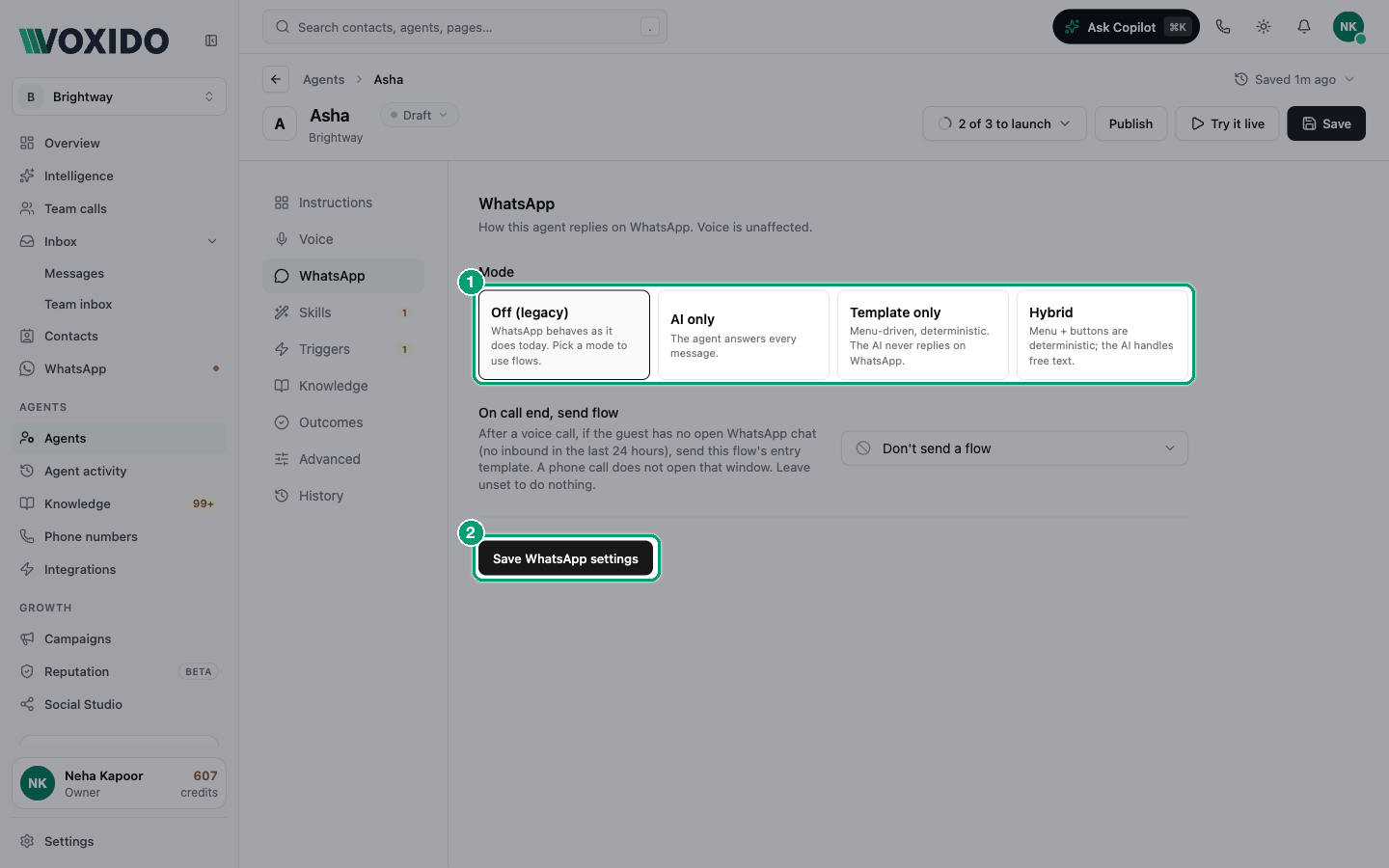
The agent's WhatsApp section decides how it replies on WhatsApp: free AI chat, a fixed tap-to-choose menu, or a mix. It can also send a WhatsApp message after a phone call ends. Phone calls are not affected by the mode.
Find it: Sidebar → Agents → open an agent → WhatsApp
This section has its own Save button
Click Save WhatsApp settings at the bottom. The Save button at the top of the editor does not save this section. For a brand-new agent, save the agent first — until then the section says "Save this agent first, then configure its WhatsApp behaviour here."
Before you start
- Connect WhatsApp to a number and assign this agent to it. See Connect WhatsApp to a number.
- For a menu, build a flow first: Sidebar → WhatsApp → Chat flows. In the flow, star its first template ("Make it the flow's first template"). Without a starred first template, the menu never sends.
Choose a mode
The problem: "Customers keep asking the same five things. I want quick buttons for those, but real answers when they type something else."
| If you want… | Choose | What happens |
|---|---|---|
| The AI to answer every message in its own words | AI only | The agent answers every message. |
| A fixed menu and never any AI replies | Template only | Every message gets the menu. The AI never replies on WhatsApp. |
| Buttons for common tasks, AI for typed questions | Hybrid | Menu words and button taps follow the flow. Anything else typed goes to the AI. |
| To keep things as they were, without flows | Off (legacy) | "WhatsApp behaves as it does today. Pick a mode to use flows." |
Which one fits your business?
- Brightway or a hotel front desk: Hybrid. "Hi" shows the menu (Book, Prices, Talk to us); "Can I bring my dog?" gets an AI answer.
- A clinic that must not improvise: Template only. Patients tap through fixed options for slots and directions.
- A coaching centre answering open questions about courses: AI only.
- A shop running a simple order-status bot: Hybrid, with a "Track order" button.
Set it up
- Click a Mode card. You'll see: the rows that mode needs appear below.
- For Template only or Hybrid: pick a Flow ("The menu this agent sends on WhatsApp"). You'll see: the flow's name in the box. Manage WhatsApp flows → opens your flows.
- For Template only or Hybrid: check Menu trigger keywords. You'll see: the box shows example words; leave it blank to use the defaults.
- For AI only or Hybrid: write WhatsApp instructions.
- Pick On call end, send flow if you want a follow-up after calls (see below).
- Click Save WhatsApp settings. You'll see: "WhatsApp settings saved".
What each setting means
| Setting | Shown for | What it does |
|---|---|---|
| Mode | Always | AI only, Template only, Hybrid or Off (legacy). |
| Flow | Template only, Hybrid | The menu flow this agent sends. |
| Menu trigger keywords | Template only, Hybrid | Words that open the menu, separated by commas. |
| WhatsApp instructions | AI only, Hybrid | Extra instructions for WhatsApp only: tone, what to collect. |
| On call end, send flow | Always | A flow to send on WhatsApp after a phone call. |
Menu trigger keywords
The menu opens only when the whole message is one of these words. Capitals and end punctuation don't matter, so "Hi!", "HELLO" and "menu?" all work. A word inside a sentence does not open the menu: "My booking is wrong" gets an AI answer in Hybrid mode.
If you leave the box blank, Voxido uses: hi, hello, hey, menu, help, start, book, booking, enquiry, inquiry, namaste, namaskar.
Add words your customers really send. A clinic might add "appointment, doctor"; a school might add "admission, fees".
A menu that just went out isn't sent again within about a minute. In Hybrid, that repeat message goes to the AI instead.
WhatsApp instructions
Short rules for chat only. The box suggests: "How the AI should reply on WhatsApp (tone, what to capture). Keep it chat-appropriate — no voice phrasings."
Example for Brightway:
Keep replies under 3 short lines. Use bullet points for prices.
Always ask for the customer's preferred date and time before offering slots.
End with one clear next step.
Replies are in English
Today the agent replies in English on WhatsApp, even when a customer writes in another language.
On call end, send flow
After a phone call, Voxido sends the starting template of the flow you pick. Leave it on Don't send a flow to do nothing. This works in every mode, even Off (legacy).
It sends only when the customer has no open WhatsApp chat — no message from them in the last 24 hours. (A phone call doesn't open a WhatsApp chat window.) It also skips:
- test calls from Try it live;
- customers who opted out or are blocked;
- flows with no starred first template (the screen warns you);
- customers who already got that template during the call.
Examples:
- Brightway sends a "Book your appointment" flow after every call, so callers can pick a slot by tapping.
- A hotel sends its booking flow with room options after an enquiry call.
- A loan-recovery team sends a "Pay now / Talk to us" flow after a reminder call.
Common problems
Customers get no reply at all. You're on Template only with no flow picked, or the flow has no starred first template. The screen warns: "Template-only means guests will get no reply at all." Also, a paused Template only agent stays silent.
"Saved — but no flow is selected". Pick a Flow and save again. In Hybrid, the AI answers everything until you do.
The menu didn't open when a customer typed "hi there". Only the whole message counts. Add "hi there" as a keyword, or let the AI reply.
The menu stopped after my colleague replied. When a team member takes over a chat, the agent stops sending menus.
My changes were lost. You clicked the top Save button. Use Save WhatsApp settings.
It says "Stage-specific flows are also configured". This agent has extra flows for certain contact stages, set up outside this screen (through the API). Saving here keeps them unchanged.