

Team calls: see how your team handles the calls your AI passes on
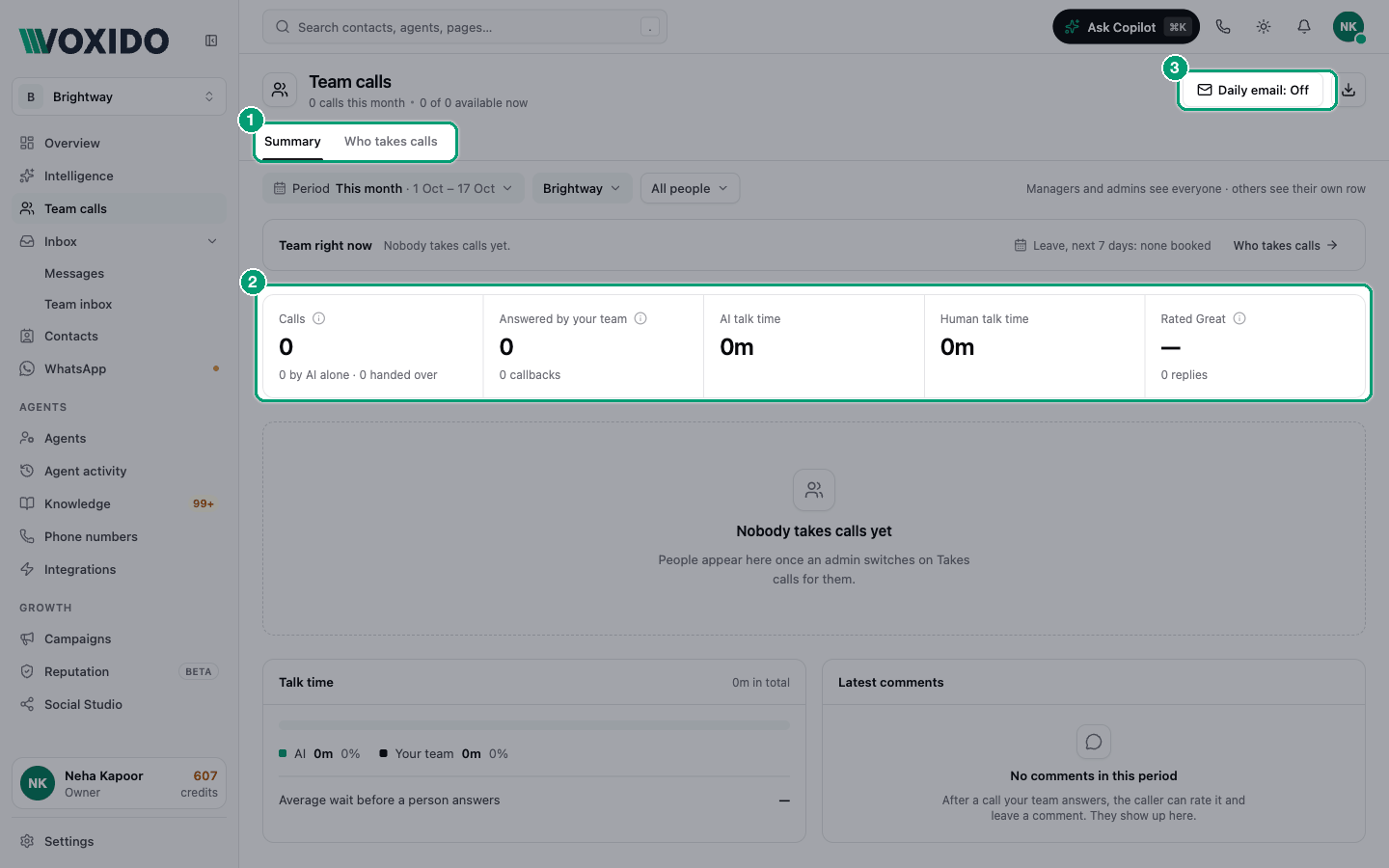
Team calls shows the calls your AI agent passed to your team. You see who answered, how fast, how long everyone talked, and what customers said afterwards. Managers also see who can take a call right now.
Find it: Sidebar → Team calls (under Intelligence)
Team calls is in the sidebar only while call routing is On. If you open it while it's off, the page says Call handover is off. Admins get an Open Call Routing button. See Call routing.
Who sees what
| Members | Managers, Admins and Owners | |
|---|---|---|
| Tiles, talk time and the By person table | Their own calls only | Everyone |
| Team right now and Leave, next 7 days | No | Yes |
| The Who takes calls tab and the people filter | No | Yes |
| Downloads | Their own numbers | Everyone |
| Everyone's report by email | No | Yes |
The toolbar says it too: "Managers and admins see everyone · others see their own row". Anyone limited to some workspaces sees only those workspaces.
A Member sees numbers once their login is linked to a person in Settings → People. Until then the page says "Your calls show here once your login is linked to a person in People."
How a manager uses this page
A quick daily routine:
- Morning: open Who takes calls. Check that enough people are Available for the day. Set someone back to Available if they were set to Away by mistake. You'll see: everyone who takes calls, their status, and who is Next up.
- During the day: glance at Team right now. It counts people by status, for example "3 Available", "1 On a call", "1 Away". You'll see: the strip at the top of Summary, with Leave, next 7 days on the right.
- End of week: sort the By person table by Missed. A red number means someone misses a lot of calls. You'll see: the person with the most missed calls at the top.
- Read Latest comments. A "Not good" comment is a chance to call the customer back.
Choose what to report on
The chips under the header filter the whole page and the downloads.
- Period: Today, Yesterday, Last 7 days, Last 30 days, This month (to start with), Last month, or a custom range of up to a year. Days follow your company time zone.
- Workspaces: shows only if you have more than one. Tick one or several. Inside a workspace, that workspace starts ticked.
- People (Managers and above): tick one or several. All people means everyone.
The tiles
| Tile | What it counts |
|---|---|
| Calls | "Inbound calls to your AI agent in the period, live handovers included. Outbound and test calls don't count." Below: how many the AI handled alone and how many it handed over. |
| Answered by your team | "Handed-over calls a person picked up; the % is of calls handed over." Also the number of callbacks: passed calls nobody answered, which became a callback job in the Team inbox. |
| AI talk time | How long your AI agent talked. |
| Human talk time | How long your people talked. |
| Rated Great | "The share of callers' ratings that were Great, counted on the day each rating came in." |
Hover the small i next to a tile name to read how it's counted.
The By person table
One row per person who takes calls.
| Column | What it shows |
|---|---|
| Person | The person. |
| Answered | Handed-over calls they picked up. |
| Missed | Rings they didn't take: no answer, Pass to next, or declined on their phone. Red when they missed at least 3 calls and at least 1 in 20 of the calls offered to them. |
| Answer in | On average, how long their phone or popup rang before they picked up. |
| AI talk | How long the AI talked on their calls, before passing them on. |
| Human talk | How long they talked on those calls. |
| Rated Great | The share of their ratings that were Great, with a bar of Great, Okay and Not good. |
| Replies | How many customers rated their calls. |
| Leave | Days on leave in the period. |
- The first row is your AI agent, marked "AI agent · handled alone". It shows the calls the AI finished without help. Its rating says not asked unless you survey those calls too.
- The last row, Your team (and how many people), adds everyone up.
- Click a column heading to sort. Click again to reverse.
- The table shows 7 people. Click + N more people for the rest.
Talk time and Latest comments
- Talk time compares AI talk with your team's talk, and shows Average wait before a person answers.
- Latest comments shows the three newest comments customers left after a call: the rating, when, the comment, who they spoke to, the workspace, and lead alerted if a team lead was told. See Feedback after the call.
Who takes calls
Find it: Team calls → Who takes calls tab (Managers, Admins and Owners)
This live board lists everyone who takes calls. It refreshes every 20 seconds.
| Column | What it shows |
|---|---|
| Person | Their name. Next up, 2nd and 3rd mark who is rung next. |
| Status | Right now, for example Available, On a call 4:12, Away till 2:30 pm or Shift at 9:00 am. See what each status means. |
| Workspaces | The workspaces they cover. |
| Answers on | Computer or Mobile. |
| Today | Calls they answered today. |
- The footer shows, for example, "3 of 6 available", and the Up next line.
- Click ⋯ on a row to pick Available, Away for 15 min, Away for 30 min, Away for 1 hour, Away until back, or Mark leave….
- The board follows the Workspaces chip when exactly one workspace is ticked. If your login is limited to some workspaces, pick one first.
- To add or remove someone, use Takes calls in People.
Download to Excel
Click the download button next to Daily email. The menu says "Follows the filters below".
- Summary by person: two sheets. One has the table's columns. Leave lists every leave in the period.
- Every call: one row per call, with the time, workspace, contact, AI talk, wait, who answered, who missed it, human talk, the rating and the comment. It covers at most 93 days. For longer, download it in parts.
A Member's files hold only their own numbers.
To get this report by email every day, click Daily email. See Daily email.
What the numbers mean
| Term | Meaning |
|---|---|
| AI talk | For a call the AI handled alone, the whole call. For a passed call, from the start until the first person is rung. |
| Wait | From the first ring until a person answers. Ring time counts as wait, not AI talk. |
| Human talk | From the moment a person answers until the call ends. |
| Missed | No answer, Pass to next, or declined. A caller hanging up first doesn't count. |
| Leave days | Working days on leave. Leave covering at least three quarters of a shift counts as a full day. Shorter leave counts as half a day. |
Common problems
Why is the AI talk tile bigger than the table's AI talk? The tile counts every call. The table counts only calls someone answered, plus the AI's own calls.
Why are the ratings all dashes? Nobody rated a call in this period, or Call feedback is off.
Why does someone have many missed calls? Check their shift in People and their status in Who takes calls. Computer answerers need Voxido open. Remember that Pass to next counts as missed here.