

Create an agent
There are three ways to get a new agent. This page helps you pick one, then walks you through it.
Find it: Sidebar → AgentsWho can use it: People whose role can edit agents (Owners and Admins by default).
Pick your path
| If you… | Choose | What happens |
|---|---|---|
| Know what the agent should do, and want full control | New agent | A blank agent editor opens. You write the instructions. |
| Aren't sure where to start | Set up with Copilot | The Copilot panel opens. Describe your business in your own words and it helps you set the agent up. |
| Already have an agent that works well | Duplicate or Copy to another workspace… | You get a draft copy to adjust. |
Our advice for most businesses
Choose New agent and paste a prompt from Sample prompts. You get a working draft in about ten minutes, and you understand every line of it.
Create a new agent from scratch
This example creates Asha, the helpline agent for Brightway.
- Click New agent at the top right of the Agents page. You'll see: the agent editor. The breadcrumb says Agents › New agent and the Instructions section is open.
- Click the Name your agent box at the top and type a name, for example
Asha. You'll see: the breadcrumb changes to the new name. - (Optional) Fill in About with a note for your team, for example "Answers the main helpline, day and night." You'll see: the note in grey. The AI never reads it.
- Check the Greeting. New agents start with "Hi, how can I help you today?". Click it to change it, for example "Hi, this is Asha from Brightway. How can I help you today?" You'll see: the line you typed. It is spoken when a call connects.
- Write the Instructions. Click Start from template for a short starter, or paste a prompt from Sample prompts. You'll see: your prompt in the box, with headings in large text.
- Click Save (or press
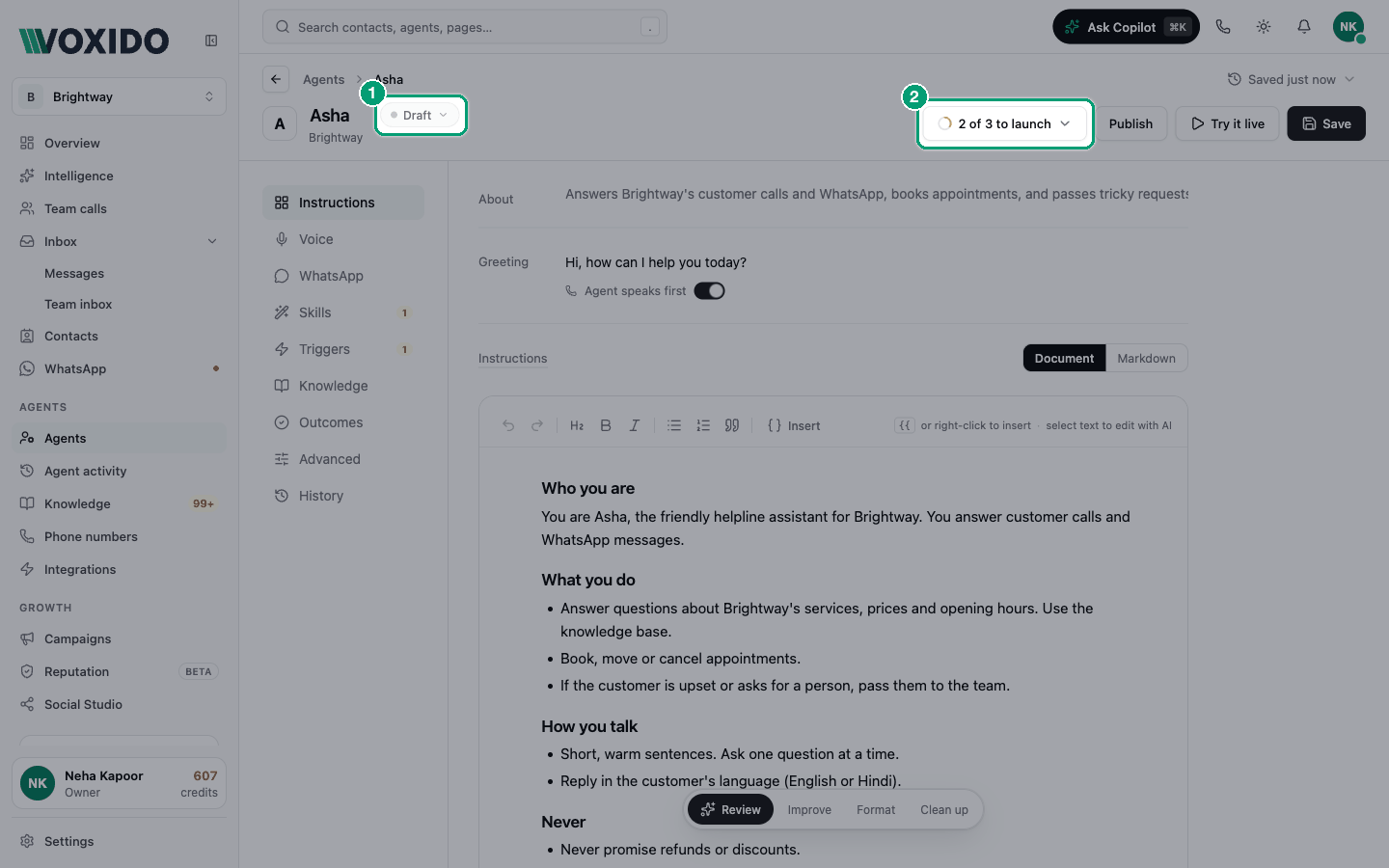
Ctrl+Son Windows,Cmd+Son Mac). You'll see: a "Agent created" message. The status pill says Draft, and a Try it live button appears.
Name and Instructions are required
If you click Save with no name, you'll see "Couldn't save — Name: Name is required". With empty Instructions you'll see "Instructions: Describe what this agent should do".
Finish the setup
Your agent is saved but not live yet. The N of 3 to launch button in the header lists what is missing. Click it, then click Fix → next to any item to jump there.
- Open Triggers and click Add trigger. Pick what starts the agent, for example When a customer calls one of my numbers. You'll see: the trigger in the list. Triggers save straight away. (On an unsaved agent you'll see "Save this agent once to add triggers.")
- Open Skills and switch on what the agent may do. Switch on at least one messaging skill, such as Send WhatsApp message. You'll see: the count at the top, for example "4 tools on".
- Open Knowledge and switch on the library with your prices, hours and FAQs.
- Click Save. You'll see: the header button now says Ready to launch.
- Click Try it live and have a real conversation with the agent. See Try your agent live.
- When you are happy, click Publish. You'll see: the status pill changes to Active. The agent now answers real customers.
Every save keeps a version
The problem: you improve the instructions, save, and the agent gets worse. Maybe it now forgets to ask for the customer's name, or it quotes a price the old prompt never mentioned. You can't remember exactly what the old text said.
Why versions help: each time you save a change to the Instructions, Voxido keeps the text you saved as a new version (v1, v2, v3…). You can go back to any of them, so you can try a bold rewrite without fear.
How to go back to an older version:
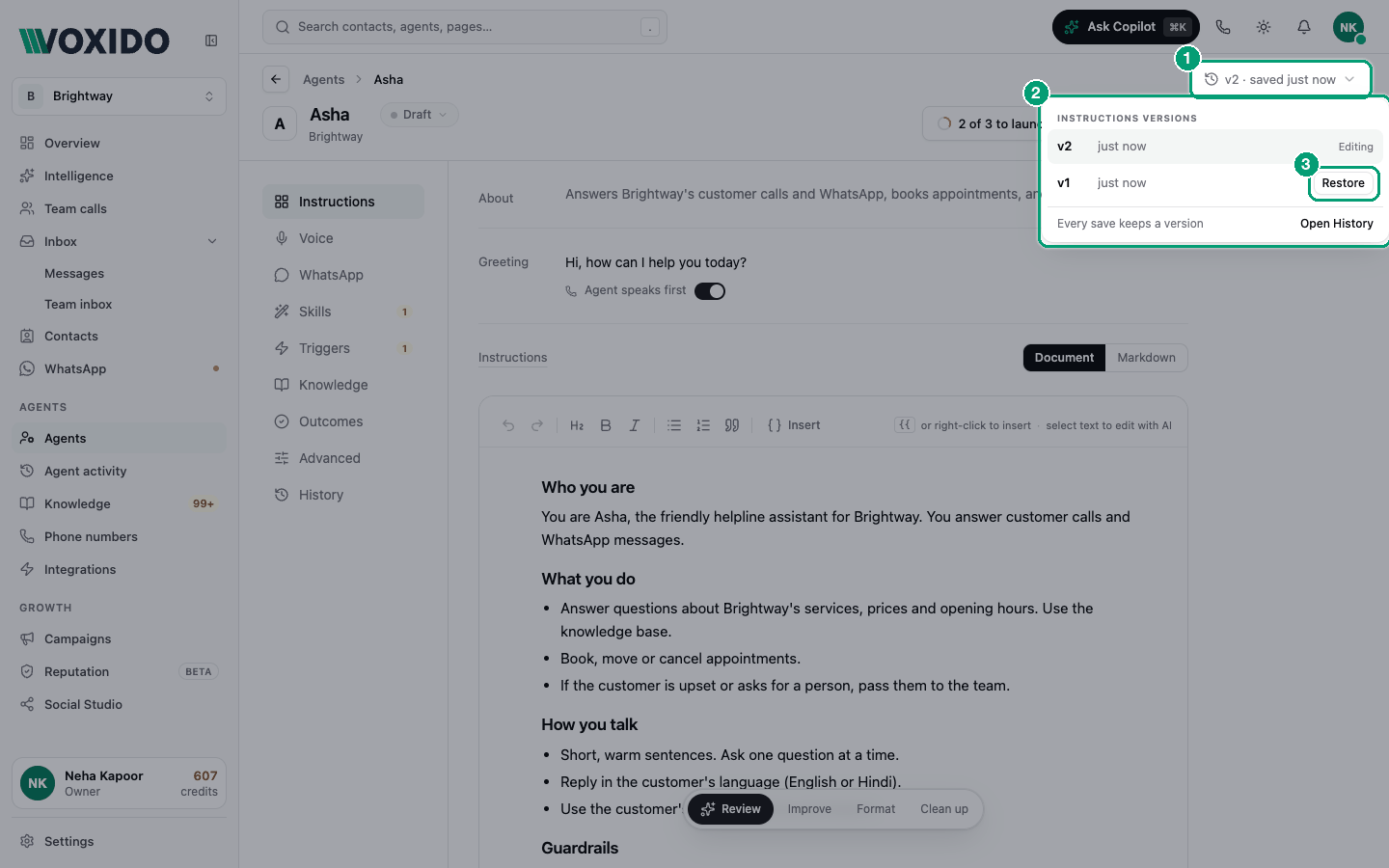
- Open the agent. Next to the breadcrumb at the top, click the versions button. It shows when you last saved, for example v2 · saved 5 min ago. You'll see: a list called Instructions versions, newest first. The newest one is marked Editing. Older ones have a Restore button. The footer says Every save keeps a version and has an Open History link.
- Pick the version you want by its time, and click Restore. You'll see: "Replace current draft with this version?"
- Click OK. You'll see: the older text in the Instructions box, and a dot on Save. Nothing has changed for customers yet.
- Read it, then click Save. You'll see: "Saved". The restored text becomes the newest version, and the text you replaced stays in the list.
Good to know:
- Only Instructions changes make a version. Changing the voice, skills or greeting doesn't, but you can see those changes in History.
- Restore brings back only the Instructions text. Everything else stays as it is now.
- Nothing is ever deleted. You can restore the newer text again later.
- Open History (at the bottom of the list) shows every change to the agent: who changed what, and when.
A safe way to try big changes
Save once before a big rewrite, so the current text is a version. Rewrite, save, and test with Try it live. If the new prompt is worse, restore the previous version in two clicks. More in History and versions.
Set up with Copilot
- On the Agents page, click Set up with Copilot. You'll see: the Copilot panel opens on the right.
- Describe what you need in plain words, for example: "I run a coaching centre. I want an agent that answers WhatsApp questions about courses and fees, and books a free demo class."
- Read what the Copilot proposes and confirm only the changes you want. You'll see: the new agent in your list, as a draft.
Always open the agent afterwards, read its instructions, and test it with Try it live. See Get AI help in the agent editor.
Copy an agent you already have
On the Agents page, click the ⋯ menu on an agent's row:
- Duplicate makes a copy in the same workspace.
- Copy to another workspace… opens Copy agent to a workspace. Pick a Destination workspace, optionally type a Name, and click Copy to workspace.
The copy starts as a Draft. It does not carry over triggers or phone numbers, so add triggers before you publish it.
When to copy
Copying is great when you have several branches. Build and test one agent in your main workspace, then copy it to each branch and change the branch details.
Common problems
I can't add a trigger. Save the agent once first. Triggers need a saved agent.
The agent landed in the wrong workspace. A new agent is created in the workspace you are in. Switch workspace before you click New agent, or use Copy to another workspace….