

Connect WhatsApp to a number
Connecting WhatsApp lets your AI agent answer customers' WhatsApp messages, day and night. It takes about five minutes with your business's Facebook login.
Find it: Sidebar → WhatsApp → Connect a WhatsApp number (or Connect number once you have one) Who can use it: Owners and Admins
Pick your path: new number or existing number?
The problem: "Customers want to WhatsApp us. Which number should the AI answer on?"
| Your situation | Choose | What you get |
|---|---|---|
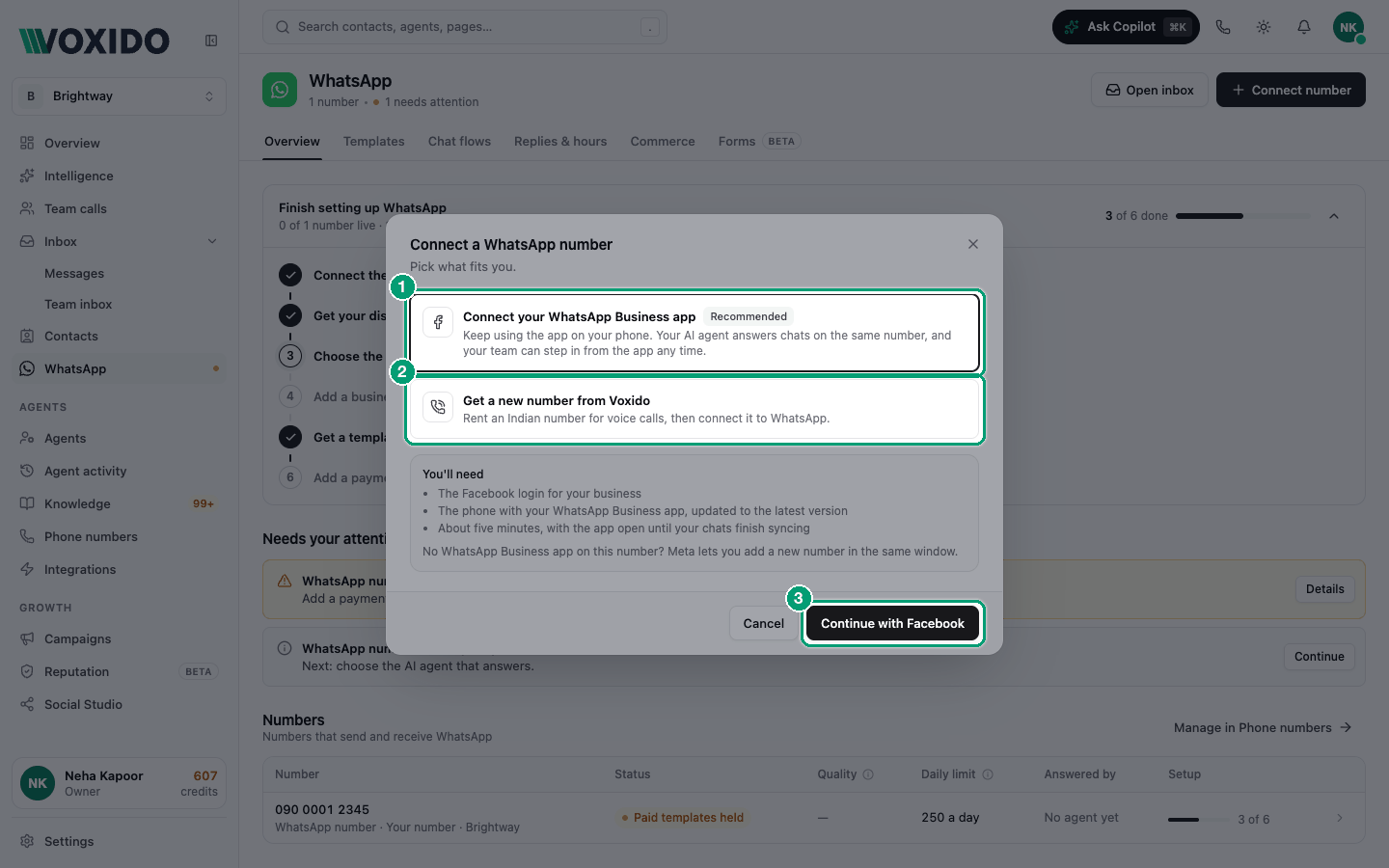
| You already chat with customers on the WhatsApp Business app | Connect your WhatsApp Business app (Recommended) | You keep your number and your app. The AI answers the same chats, and your team can step in from the app any time. In Voxido this number is WhatsApp-only: it doesn't take calls. |
| You want calls and WhatsApp on one number | Use a Voxido number | One number for both. Meta checks the number with a phone call, and the code shows in Voxido. |
| You have no WhatsApp number yet and only need chats | Connect your WhatsApp Business app, then add a new number in Meta's window | Meta lets you add a new number in the same window. |
Examples:
- A salon that already answers bookings on the WhatsApp Business app connects that app. Customers keep using the number they know.
- Brightway wants one number on its website for calls and chats, so it uses its Voxido "Main line".
- A real estate agency buying a fresh number for a new project buys a Voxido number and connects WhatsApp on it.
Before you start
- [ ] The Facebook login for your business.
- [ ] For the app path: the phone with your WhatsApp Business app, updated to the latest version.
- [ ] About five minutes. Keep the app open until your chats finish syncing.
- [ ] For the Voxido number path: the number has an answering agent. Meta verifies the number by calling it, and your AI agent takes that call. A number with no agent doesn't pick up, so no code arrives. See Choose which agent answers a number.
- [ ] Your browser allows pop-ups for Voxido. Meta's signup opens in a pop-up window.
Path A: Connect your WhatsApp Business app
- Open WhatsApp in the sidebar. Click Connect a WhatsApp number (or Connect number at the top right). You'll see: "Connect a WhatsApp number — Pick what fits you." with two choices.
- Choose Connect your WhatsApp Business app. You'll see: a You'll need list under it.
- Click Continue with Facebook. You'll see: Meta's window. The button in Voxido says Connecting….
- In Meta's window, log in, choose or create your business, and pick your WhatsApp number. Follow every step until Meta says you're done. You'll see: Meta's window closes, then "WhatsApp number added". The number opens in its details panel.
- Keep the WhatsApp Business app open on your phone while your contacts and chats copy into Voxido.
Path B: Use a Voxido number
- Open WhatsApp and click Connect number (or Connect a WhatsApp number).
- Choose Use a Voxido number. You'll see: "Your Voxido numbers without WhatsApp", with a Connect WhatsApp button on each. If you have none, the choice says Get a new number from Voxido.
- Click Connect WhatsApp next to your number. You'll see: Meta's window, and a box in Voxido that says "Waiting for Meta's call".
- In Meta's window, when asked how to get the code, choose phone call. You'll see: "Meta is calling this number…". Your AI agent answers. About a minute after the call ends, the code shows in Voxido as Meta's verification code.
- Click Copy and paste the code into Meta's window. Finish Meta's steps. You'll see: "WhatsApp number added". The number opens in its details panel and appears on the WhatsApp Overview.
No Voxido number yet? Click Buy a new number (or Choose a number) to buy one first. See Buy a phone number. Then come back and connect it.
If Voxido shows a registration PIN
The success message may include a registration PIN ("Save your registration PIN: …"). Write it down and keep it somewhere safe.
You can also connect from Phone numbers: open a Voxido number and click Connect WhatsApp in the "WhatsApp not active." note.
After you connect: finish setup
The WhatsApp Overview shows a checklist for each number. Click any step to open that number.
| Step | Where you do it | Why it matters |
|---|---|---|
| Connect the number | Voxido (above) | Nothing works without it. |
| Get your display name approved | Meta (WhatsApp Manager) | Until it's approved, customers see your number instead of your business name. |
| Choose the AI agent that answers | Voxido: the agent's Triggers | Without an agent, chats aren't answered. See Choose which agent answers a number. |
| Add a business photo and description | Meta (your WhatsApp business profile) | A real photo and description build trust. |
| Get a template approved | Voxido: WhatsApp → Templates | You need one to message customers first. See WhatsApp message templates. |
| Add a payment method on Meta | Meta Business Suite → Billing & payments | Without it, messages you start aren't delivered. Replies still go out. |
Then decide how the agent replies (AI, menus, or both) in Agent WhatsApp settings.
Other ways to connect
- Sync WhatsApp (older way). A Voxido number's details panel also has a WhatsApp Business Account ID box and a Sync WhatsApp button. This is the older method, used when Voxido gives you that ID. After syncing, send "Hi" to the number from your own WhatsApp. It goes live on the first message.
- Your own Twilio or Exotel account. Add a WhatsApp Number when you connect them under Integrations. See Twilio.
- DoubleTick. Numbers connected through DoubleTick show Connected via DoubleTick and are managed under Integrations.
Disconnect WhatsApp
- Open the number (from WhatsApp or Phone numbers) and click Disconnect WhatsApp. You'll see: "Disconnect WhatsApp? This keeps the phone number. Linked message templates become drafts."
- Click Disconnect. You'll see: "WhatsApp disconnected". You can connect again later.
For a Your number line, use Release → Remove. The number stays yours.
Common problems
"The WhatsApp signup was closed before it finished, so nothing was connected." Meta's window was closed early. Click Connect WhatsApp again and finish every step.
"We couldn't read the result back from Meta." The pop-up was blocked or closed. Allow pop-ups for Voxido in your browser, then try again.
"Meta finished the signup without a WhatsApp number." Click Connect WhatsApp again, pick the same business account, and add and verify the number.
"That number is not on the WhatsApp Business Account you selected." Start again and pick the business account that holds the number.
"This number hasn't been verified with WhatsApp yet." Start again, pick the same number, and enter the code WhatsApp sends to it.
"Meta shared several numbers…, so we couldn't tell which one to connect." Remove the numbers you don't use in WhatsApp Manager, then try again.
"…is already registered to another company." This number is connected to a different Voxido account. Disconnect it there first.
"This number is connected through DoubleTick." Disconnect it under Integrations → DoubleTick first.
"Meta called, but the code wasn't clear." Open the call under the box. Read the code from the transcript, or play the recording.
No call from Meta arrives. Check the number has an answering agent, and that you chose phone call (not SMS) in Meta's window.
"Connect your WhatsApp Business app" is greyed out ("Not available on this environment yet"). Ask Voxido support to turn on WhatsApp signup for your account.
The number shows "Paid templates held" or "Payment needed". Add a card to the WhatsApp account in Meta Business Suite → Billing & payments, and set its currency.